To start playing VR casino games, you need a compatible headset, its controllers, a safe play area, an internet connection, and a casino application that supports your hardware. Install the application from an official store or developer page, complete its tutorial, learn the basic grab and menu controls, and begin with a free or social game before considering any real-money activity.
The exact menus vary by headset and application, but the onboarding process is usually the same:
- Confirm that the game supports your headset and, if required, your PC.
- Charge and update your VR equipment.
- Download the application from a verified source.
- Create or connect the required account.
- Configure your play boundary and audio settings.
- Choose an avatar and review privacy options.
- Complete the movement and interaction tutorial.
- Enter a beginner-friendly or free-play table.
- Set a time limit and take a break if you feel uncomfortable.
This guide walks through each step without assuming previous VR experience.
What You Need to Start
Before downloading a game, check that you have the equipment, accounts, and physical space needed to launch it.
Essential VR casino setup checklist
- A compatible VR headset: Use the headset you already own and check the game’s store listing for compatibility.
- Working controllers: Most casino interactions use tracked hand controllers, although some applications may also support hand tracking.
- A suitable computer, if required: Standalone applications run on the headset itself. PC VR applications need a compatible gaming computer and either a cable or supported wireless connection.
- An internet connection: Multiplayer rooms, account services, voice chat, updates, and online play generally require a stable connection.
- A platform account: Your headset or PC storefront may require an account before you can install applications.
- Enough storage space: Check the application’s current storage requirement on its official listing.
- A clear play area: Remove objects that could be hit when reaching, turning, or stepping.
- Headphones or built-in audio: Casino environments use sound for dealer prompts, table activity, and social communication.
- Optional microphone access: Voice chat may require permission, but you can usually mute your microphone if you do not want to speak.
If you are still learning how your current hardware works, consult the VR headset technology guide. That resource explains the main hardware categories; this guide focuses on using equipment you already have rather than comparing headsets to buy.
Standalone VR versus PC VR
The installation process depends on how the application runs.
| Setup type | Where the game runs | Typical installation path | Additional requirement |
|---|---|---|---|
| Standalone VR | Directly on the headset | Headset’s official application store | Sufficient headset storage |
| PC VR with cable | On a connected computer | PC storefront or official developer installer | Compatible PC and connection cable |
| PC VR over wireless connection | On a computer and streamed to the headset | PC storefront plus the headset’s connection software | Compatible PC and reliable local network |
Do not assume that a game available for one VR platform will work on another. Compatibility can also change as software is updated, so use the current official store page as the final reference.
Understand free, social, and real-money play
“VR casino game” can describe several different experiences:
- Social casino games use virtual chips or credits and focus on entertainment and multiplayer interaction.
- Free-play or demo modes let you learn an interface without depositing money.
- Real-money gambling applications involve financial risk and may be subject to age, identity, location, and licensing restrictions.
Virtual chips are not automatically equivalent to money and may not be withdrawable. Before playing, read the application’s description, purchase disclosures, and terms. If your goal is to learn the controls, start with the directory of free VR casino games.
Choose and Install a VR Casino Game
Choose an application based on compatibility, access model, and comfort—not just screenshots or the number of available tables.
How to evaluate an application before installing it
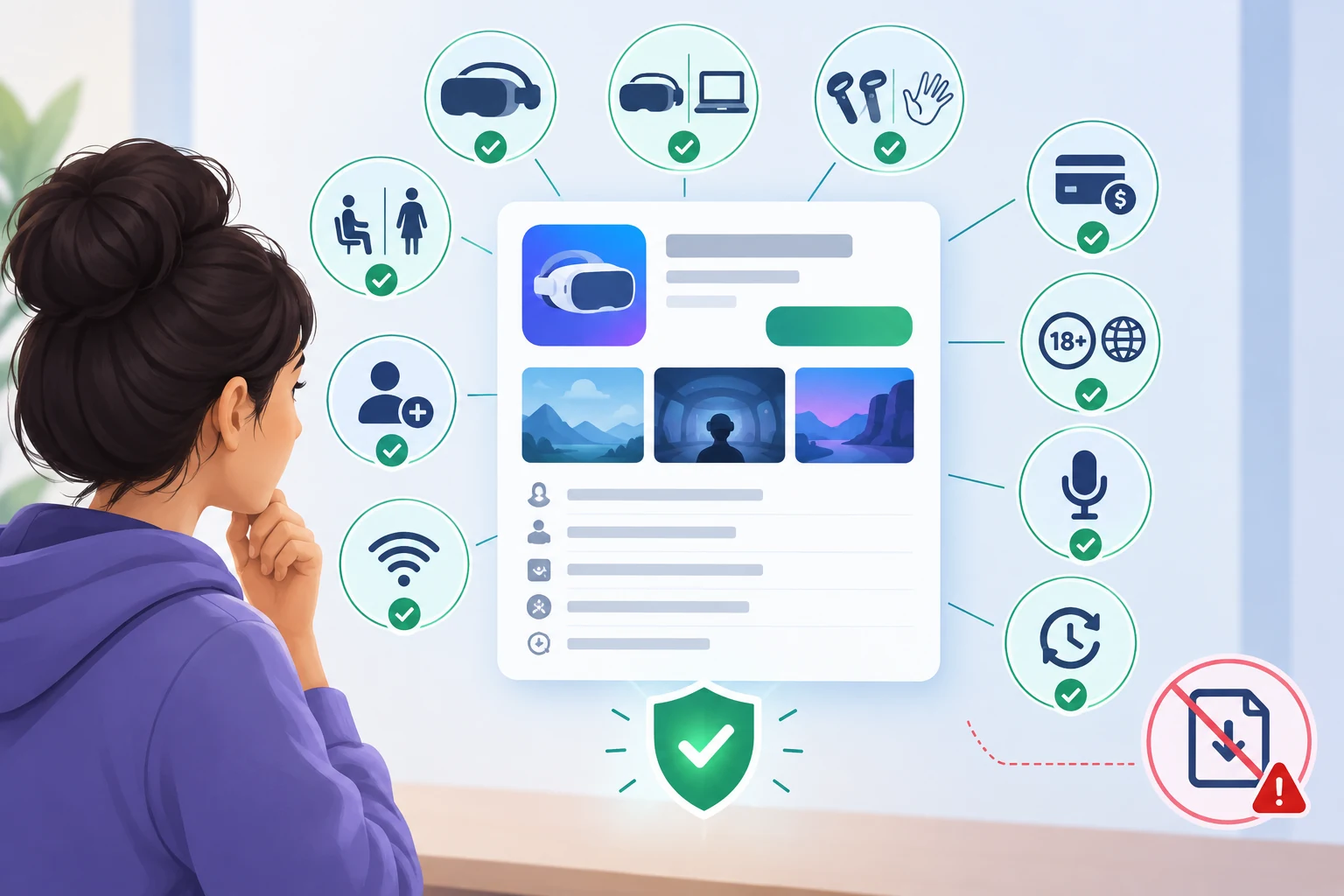
Check the official listing for the following information:
- Supported headset and platform: Confirm that your exact setup is listed.
- Standalone or PC requirement: Determine whether the game runs directly on your headset.
- Controller support: Check whether it requires motion controllers or supports hand tracking.
- Play mode: Look for seated, standing, room-scale, single-player, or multiplayer options.
- Account requirements: Some applications use a platform account; others require a separate developer account.
- Internet requirements: Confirm whether the tutorial or any offline mode works without a connection.
- Payment model: Identify whether the application is free, paid, social-only, or connected to real-money services.
- Age and regional restrictions: Review the store rating and the application’s terms before creating an account.
- Voice and social features: Check whether public voice chat is used and whether muting or private rooms are available.
- Recent support information: Read the update history and current user notices for unresolved launch or compatibility issues.
Use the headset’s official store, a recognized PC storefront, or the developer’s verified website. Avoid unofficial installers that request unnecessary permissions or ask you to disable normal device protections.
For an example of what to examine before joining a social casino environment, read the Vegas Infinite review.
Install on a standalone headset
Menu names vary, but the general process is:
- Put on the headset and connect it to Wi-Fi.
- Open the device’s official store.
- Search for the exact application name.
- Open its listing and verify the developer, compatibility, rating, access model, and required storage.
- Select Get, Download, Install, or the equivalent button.
- Wait for installation to finish before launching the application.
- Approve only the permissions needed for features you intend to use.
- Open the application from the headset’s library.
Keep the headset connected to power if its battery is low, but arrange the cable so it does not create a trip or snagging hazard.
Install a PC VR application
A PC-based setup includes both headset connection software and the game itself:
- Install the official connection software required by your headset.
- Update the headset software, PC application, and graphics drivers where appropriate.
- Connect the headset by a supported cable or wireless method.
- Confirm that the headset and both controllers appear as connected.
- Open the supported PC storefront or verified developer page.
- Check the game’s current system and headset requirements.
- Install the application on a drive with enough available space.
- Start the headset’s VR environment before launching the game, unless its instructions specify otherwise.
- Put on the headset and complete any first-run prompts.
If the application offers more than one launch mode, select the VR mode associated with your headset software. A desktop or non-VR mode may open the game on the monitor without sending the correct view to the headset.
Set Up Your Account, Play Area, and Avatar
The first launch commonly includes account prompts, permissions, boundary configuration, and an introductory tutorial. Complete these steps rather than skipping directly to a public table.
Create or connect the required account
An application may ask you to sign in through your headset platform, create a separate account, or choose a temporary display name.
During account setup:
- Use a unique password if a separate password is required.
- Enable additional account security options when available.
- Avoid putting your full name, birth date, address, or contact details in a public username.
- Confirm whether your display name will be visible to other players.
- Review friend requests, direct messages, voice chat, and visibility settings.
- Check whether purchases require a PIN or another confirmation method.
- Do not share login codes or verification messages with other users.
If identity or location verification appears in a real-money service, follow only the instructions shown in the verified application or official website. Do not send documents or payment information to another player.
Configure the play boundary
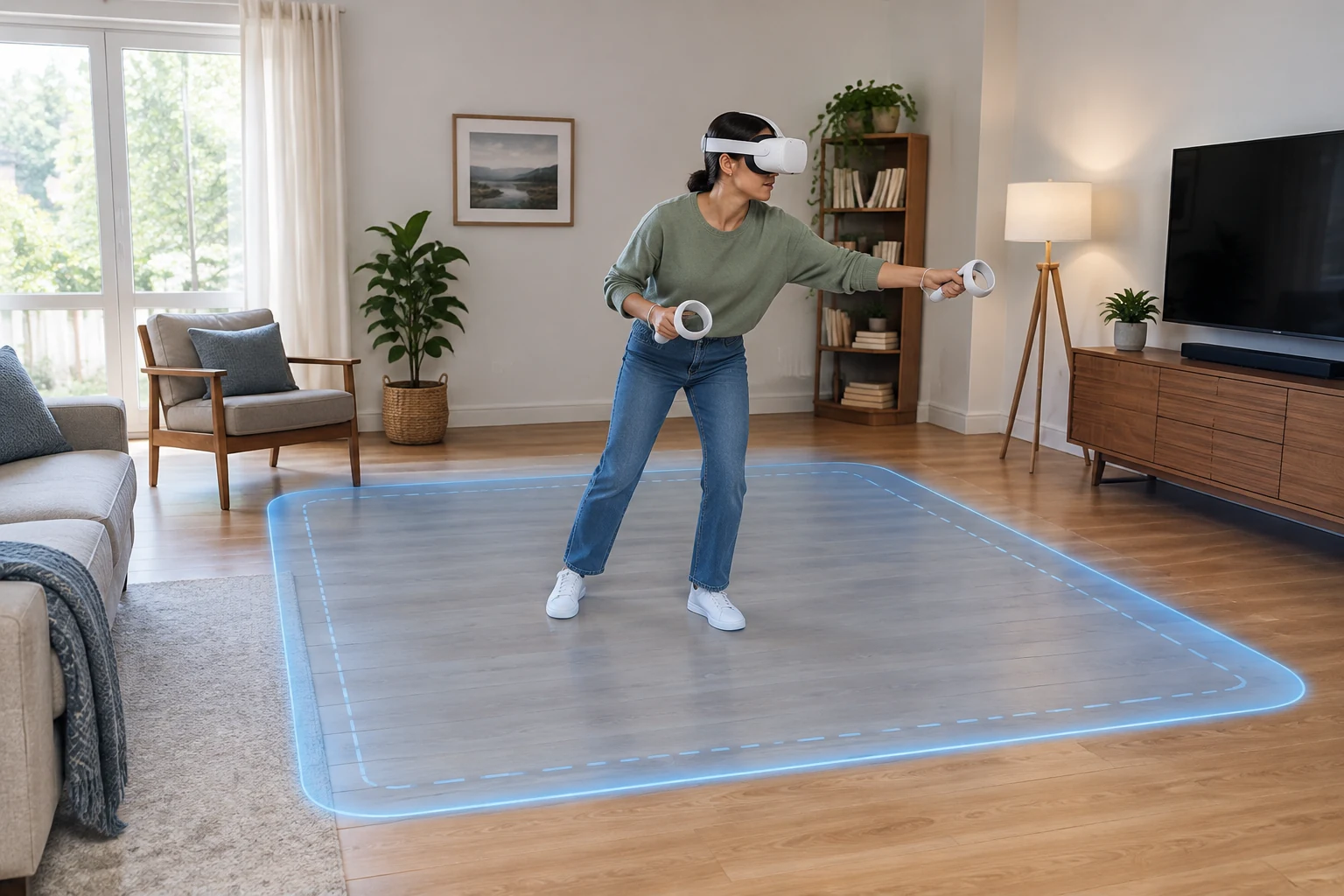
Casino games may look stationary, but players often lean, turn, reach for chips, or move their arms beyond the table edge. Set the physical boundary before entering the virtual room.
- Clear the floor of bags, cables, pets’ toys, and low furniture.
- Move far enough away from walls, screens, lamps, and ceiling fixtures.
- Follow the headset’s boundary or room setup process.
- Confirm that the virtual floor height matches the real floor.
- Place a chair only if the game supports seated play.
- Keep controllers secured according to their intended design.
- Test a slow reach forward and to each side while the boundary is visible.
A seated mode can reduce the amount of movement required, but the chair should be stable and should not roll unexpectedly. Recenter the view after sitting so the virtual table appears at a comfortable height.
Adjust the headset for a clear view
Before playing:
- Position the headset so text and menus look as clear as possible.
- Tighten it enough to remain stable without creating uncomfortable pressure.
- Clean the lenses only with an appropriate lens-safe method.
- Set volume high enough to hear prompts but low enough to remain aware of your surroundings.
- Use accessibility options such as subtitles, text size, seated mode, or snap turning when available.
Blurred text is not always a graphics problem. First check headset position, lens cleanliness, and whether the application is rendering at the expected resolution.
Create an avatar without oversharing
Multiplayer casino applications may ask you to choose a body, face, clothing, or display name. The avatar does not need to resemble you.
When configuring it:
- Choose a non-identifying display name.
- Avoid reproducing personal details in profile text.
- Check whether the avatar’s appearance or inventory is public.
- Review who can approach, message, hear, or invite you.
- Locate the mute, block, and report controls before entering a busy room.
These settings are easier to learn in a private lobby or tutorial than during an unwanted interaction.
Learn the Controls and Start Your First Game
VR casino controls are designed around physical actions such as pointing, gripping, picking up objects, and pressing virtual buttons. However, button mappings differ between applications. Treat the in-game tutorial as the authoritative guide for your setup.
Common VR controls
| Action | Common interaction | What to check |
|---|---|---|
| Point at a menu | Aim a controller like a pointer | Keep the pointer steady before selecting |
| Select an option | Trigger or primary button | Some games use a pinch with hand tracking |
| Pick up an object | Grip button or grab gesture | Release gently rather than throwing |
| Move or rotate | Thumbstick, teleport, or snap-turn control | Use the most comfortable option |
| Open the main menu | Menu button or wrist-mounted control | Learn this before joining a table |
| Recenter the view | System shortcut or in-game setting | Use it if the table is too high, low, or off-center |
| Mute the microphone | Quick menu or audio panel | Confirm the mute indicator |
| Leave a table | Table menu, lobby button, or pause menu | Do not rely on removing the headset |
| Block or report a user | Social or player menu | The exact labels vary by application |
Avoid repeatedly squeezing every controller button while holding a virtual object. In some applications, a second input may fold, throw, drop, or otherwise act on that object.
Complete the tutorial
A useful tutorial should teach you how to:
- Point at and select interface elements.
- Grab, move, and release virtual objects.
- Open the pause or system menu.
- Recenter your position.
- Move between the lobby and a table.
- Confirm or cancel an action.
- Control your microphone.
- Leave the game safely.
Repeat any control that does not feel predictable. Being able to exit, mute, and recenter is more important than learning decorative gestures.
Choose a suitable first table
Your first session should minimize pressure and distractions. Look for:
- A tutorial or practice table.
- Free-play or virtual-credit mode.
- A private, solo, or low-occupancy room.
- Clearly labeled stakes or limits.
- A familiar game type.
- Seated mode if you prefer not to stand.
- Simple movement options rather than continuous locomotion.
This guide does not cover the complete rules of every casino game. If you do not know the selected game’s rules, use its tutorial or help screen before joining a live multiplayer table.
Start your first VR casino game step by step
- Launch the application. Wait until the main lobby and controllers are fully loaded.
- Check your position. Make sure the virtual floor and table align with your seated or standing height.
- Open the settings. Confirm movement style, dominant hand, audio level, microphone status, and comfort options.
- Select tutorial or free play. Avoid paid entry or real-money activity while learning the interface.
- Read the table information. Check whether the room is public, what currency or credits it uses, and whether any action has a cost.
- Take your seat or assigned position. Recenter if the table is out of reach.
- Practice one interaction at a time. Point, select, grab, and release before trying faster gestures.
- Follow the game prompts. Wait for your turn and use the highlighted controls when available.
- Open and close the menu once. Confirm that you know how to mute, leave, and return to the lobby.
- End the first session early. Remove the headset if you experience discomfort, disorientation, eyestrain, nausea, or loss of awareness of the room.
Recognize what you are spending
Before confirming any transaction, identify the type of balance shown:
- Free virtual chips supplied for play
- Earned in-game currency
- Purchased virtual currency
- Subscription or downloadable content
- Real-money balance, where applicable
Do not infer value from casino-style symbols alone. Check the application’s purchase screen and terms to determine whether an item can be bought, transferred, redeemed, or withdrawn. Use purchase confirmation controls where available, especially if other people have access to the headset.
Fix Common Launch and Control Problems
Most first-session problems involve compatibility, updates, tracking, account access, or incorrect launch modes.
| Problem | Likely checks | Practical next step |
|---|---|---|
| Application does not appear in the store | Platform, region, age settings, or device compatibility | Confirm the official listing supports your headset and account |
| Game installs but will not launch | Pending update, low storage, corrupted installation, or service outage | Restart the device, check updates and storage, then consult official service notices |
| Game opens only on the PC monitor | Wrong launch mode or inactive VR connection | Start the headset connection software and select the supported VR launch option |
| Headset is not detected by the PC | Cable, port, wireless connection, or required software issue | Reconnect the device and verify it appears in the official headset software |
| Controllers do not appear | Low battery, pairing issue, or tracking obstruction | Recharge or replace batteries, reconnect controllers, and check tracking conditions |
| Hands are offset from virtual objects | Lost tracking or incorrect position | Return to the boundary, recenter, and restart tracking if necessary |
| Table is too high or too low | Floor level or seated-height calibration is incorrect | Redraw the boundary or use the game’s height and recenter settings |
| Text is difficult to read | Headset position, lenses, rendering settings, or app design | Refit the headset, clean lenses appropriately, and check visual settings |
| Voice chat does not work | Microphone permission, mute setting, or selected input | Check system permissions and the application’s audio menu |
| Connection drops in multiplayer | Internet or local wireless instability | Pause other heavy network activity and move to a more reliable connection |
| Login repeatedly fails | Incorrect account, expired session, or authentication issue | Verify the account on the official service and reset credentials through official channels |
| Performance is uneven on PC | Hardware load or unsuitable graphics settings | Close unnecessary programs and use the application’s lower graphics preset |
Change one setting at a time and test again. This makes it easier to identify the cause. If a problem persists, record the application version, headset model, connection method, and any displayed error message before contacting official support.
Do not download unofficial “fixes” or give remote access to someone claiming they can repair your account.
Comfort and Basic Safety for a First Session
A VR casino may encourage long, stationary sessions, but remaining in a headset for too long can still become uncomfortable. For initial play:
- Begin with a short session.
- Stop immediately if you feel nauseated, dizzy, disoriented, unusually warm, or unwell.
- Keep drinks, cables, and breakable objects outside the movement area.
- Do not walk around while using menus unless the application and boundary are designed for it.
- Use seated mode, snap turning, or teleport movement if continuous movement feels uncomfortable.
- Take off the headset before handling real-world objects.
- Keep the device away from direct sunlight and follow its care instructions.
- Do not play while impaired or when you cannot respond safely to your surroundings.
- Mute, block, or leave if another player becomes disruptive.
- Treat spending prompts as real decisions, even when the interface uses virtual chips or casino imagery.
For more complete coverage of privacy, social interaction, spending controls, physical setup, and responsible play, use the dedicated VR casino safety guide.
Your First-Session Checklist
Before launching:
- [ ] The application officially supports your headset.
- [ ] The headset and controllers are charged.
- [ ] Required software and the game are updated.
- [ ] The physical area is clear.
- [ ] The boundary and floor height are correct.
- [ ] You understand whether the game is free, social, paid, or real-money.
- [ ] Your display name does not reveal personal information.
- [ ] You know how to mute, recenter, block, and exit.
- [ ] You selected a tutorial or free-play table.
- [ ] You set a time or spending limit appropriate to the session.
After playing:
- [ ] You exited through the application menu.
- [ ] No unexpected purchase or account prompt remains open.
- [ ] The headset and controllers are stored safely.
- [ ] Any discomfort has fully passed before another session.
- [ ] Privacy, microphone, and social settings match your preferences.
Frequently Asked Questions
Can I play VR casino games without a gaming PC?
Yes, if the application has a standalone version compatible with your headset. PC VR titles require a suitable computer, while standalone titles install and run directly on supported headsets. Check the current official listing before downloading.
Do I need to spend real money?
Not necessarily. Many VR casino experiences use free or virtual credits, and some offer tutorials or social play. Always check what a displayed balance represents before confirming a purchase or joining a table.
Can I play while seated?
Often, but support varies. Look for a seated mode or height adjustment in the application settings. Use a stable chair and recenter the view after sitting.
Why is the virtual table out of reach?
The boundary, floor height, or seated position may be calibrated incorrectly. Reset the play area, confirm the floor level, and use the application’s recenter or height adjustment option.
Should I allow microphone access?
Only if you want to use voice features. You can deny permission or remain muted where the application allows it. Learn where the mute and player-management controls are before entering a public room.
What is the best type of game for a first session?
Choose a familiar game with a tutorial, free-play mode, and simple controls. The goal of the first session is to learn interaction, menus, and table navigation—not to master every game or enter high-pressure play.